
“Sound is half of the picture.”
– G. Lucas
This area of my portfolio highlights Best Practices.
Audio
Unity’s audio features include full 3D spatial sound, real-time mixing and mastering, hierarchies of mixers, snapshots, and predefined effects.
Unity Concepts
- AudioSource – Plays sounds in a scene
- AudioListener – Captures audio
- AudioClip – Represents sound files in Unity
- AudioMixer – Manages routing and effects
- AudioMixerGroup – Organizes sounds
- AudioReverbZone – Simulates reverberation
- AudioEffect – Applies reverb / echo
- AudioFilter – Dynamically cut out frequencies
🔔Update: Audio For Unity 6
The latest release of Unity 6 brings key features to first-party support.
- Random Container – Orchestrate series of sounds together
- Mixer Improvements: New enhancements to Audio Mixer
- Ambisonic Support: Better integration with Ambisonic / 3D
- DSPGraph – Next-generation low level audio engine for Unity
- Native audio plug-ins SDK – Lower latency / closer to the metal
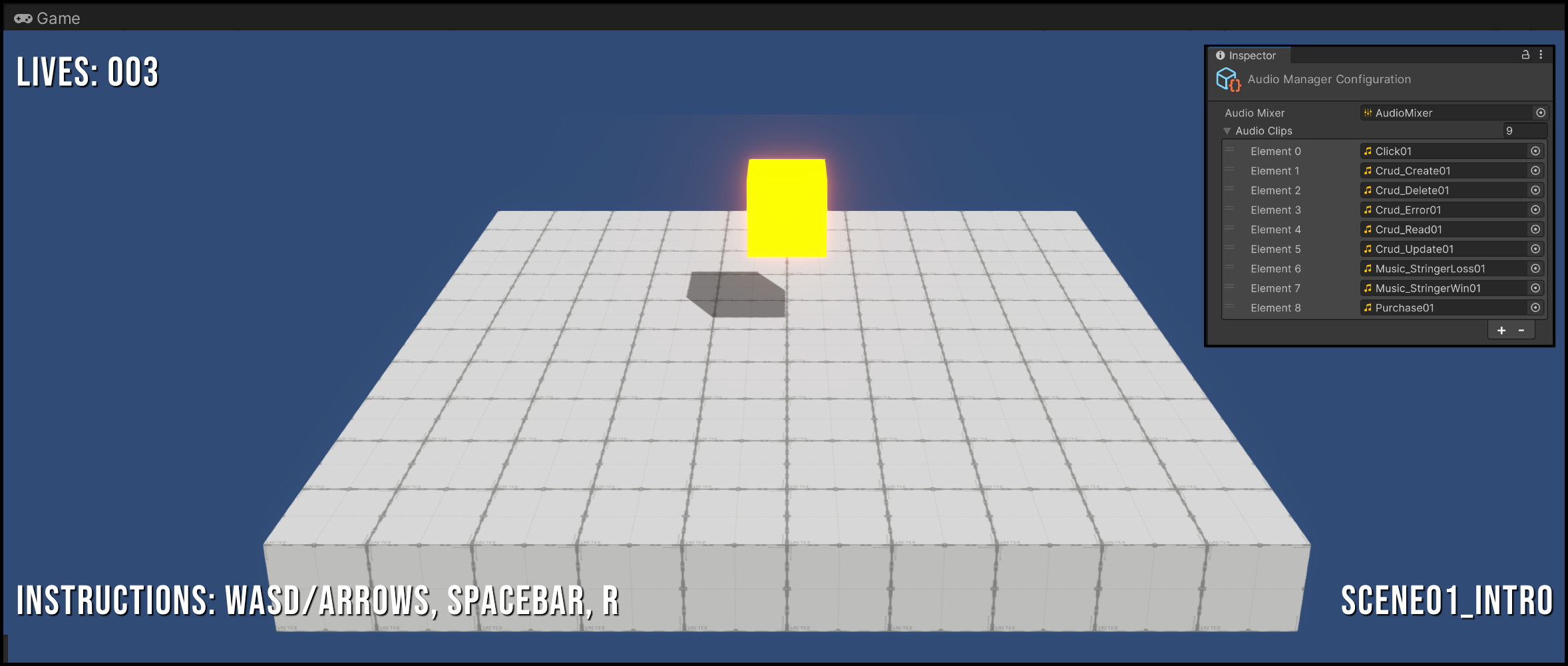
RMC Audio Package & Project Template
With Unity, the AudioSource plays back an AudioClip in the Scene.
Setting this up Unity audio from scratch is indeed straightforward. However, organizing your C# audio scripting in a scalable way is non-trivial.
The RMC AudioManager represents a great solution. Its freely available in the RMC Core package and ready for use in your next project.
Check it out!
GitHub Repo
- GitHub.com/SamuelAsherRivello/rmc-audio – Audio library & samples with project
- GitHub.com/SamuelAsherRivello/unity-project-template – Audio library & samples without project
Features
- AudioManager Prefab
- Singleton Access
- Flexible API
- Easy to learn
- Easy to use
- Hard to misuse
The following steps are completed for you in the sample project.
Audio Manager Usage
- Import the RMC Core Unity Package
- Drag
AudioManager.prefabfrom/Packages/to/Assets/ - Create configuration via
Unity ➜ Assets ➜ Create ➜ RMC ➜ Core ➜ AudioConfiguration - Populate configuration with
AudioClipsandAudioMixer - Call
AudioManager.Instance.PlayAudioClip("SomeAudioClipName");
Audio Manager API
In this sample snippet, the AudioManager (ScriptReference) is plays an audio clip as the player jumps.
No additional C# setup is required for Audio. It just works 🙂
//
using RMC.Core.Audio;
using UnityEngine;
using UnityEngine.InputSystem;

namespace RMC.MyProject.Scenes
{
    public class Scene01_Intro : MonoBehaviour
    {
        [SerializeField]
        private Rigidbody _playerRigidBody;
        private InputAction _jumpInputAction;

        protected void Start()
        {
            // Setup Input
            _jumpInputAction = InputSystem.actions.FindAction("Jump");
        }

        protected void Update()
        {
            // Check Input
            if (_jumpInputAction.WasPerformedThisFrame())
            {
                // Perform Jump
                _playerRigidBody.AddForce(Vector3.up * 10, ForceMode.Impulse);

                // Play Audio
                AudioManager.Instance.PlayAudioClip("Jump01");
            }
        }
    }
}
//
Beyond Unity Audio

While Unity’s built-in audio system is robust, there are specialized tools that offer additional functionality beyond Unity’s capabilities for advanced use-cases.
- Wwise – Professional audio middleware used for complex sound design and interactive audio
- FMOD – Cross-platform audio engine with real-time effects and live mixing capabilities
- CRIWARE – A versatile solution for high-quality audio in games and interactive media
What’s Next?
I’m passionate about learning, creating, and contributing to meaningful projects.Contact me to discuss opportunities that align with my experience, skills, and interests.